

Someone can navigate a smartphone without thinking twice, then sit down at a computer and lose ten minutes hunting for a file they downloaded five minutes earlier – unsure where it landed, what to rename it, or how to get it into a PDF before attaching it to a form. Ask what are the basic computer skills needed today, and the honest answer usually comes down to a handful of everyday actions nobody bothers teaching directly – not flashy software knowledge, just the stuff that keeps a person from getting stuck. Most gaps show up right there: managing files, moving between programs, sending something correctly.
Someone just starting out needs four things working together: comfort inside the operating system, safer browsing habits, clear file handling, and messages that land the way they're meant to. None of these require installing anything new – they're mostly about knowing where things already are.
Basic computer tasks to practice:
Save a download into the folder it actually belongs in, not the desktop;
Rename a file so it makes sense a week later;
Keep several browser tabs open without losing track of any of them;
Send an email with the attachment actually included;
Spot a scam link before clicking it.
Opening and closing programs, switching between open windows, and running a quick search sound obvious until someone actually watches a beginner struggle with all three. Finding the Downloads folder matters more than it seems – most confusion about "lost" files traces back to not knowing where things land by default. From there, creating a folder, saving into it, moving a file, renaming it clearly, and recovering something accidentally deleted round out the core set.
A concrete practice run: save an invoice.pdf into a folder called Bills, rename an outdated CV_2026.docx so it's obvious which version it is, then move both into folders that actually make sense six months from now.
Confusing the address bar with a search box trips up more people than expected – typing a company name into the address bar and landing somewhere unrelated is a common first mistake. Checking the actual site address before entering anything, managing tabs without losing the important one, finding where a download actually saved, and recognizing a suspicious link, form, or attachment round out the essentials. Following all of it still won't stop every scam. It closes the openings that catch beginners most often, which is most of what actually goes wrong.
|
Action |
Risk |
Safer habit |
|
Clicking links in messages |
Phishing pages |
Type the site directly or use a saved bookmark |
|
Downloading “free” software |
Bundled malware |
Stick to official sites or trusted app stores |
|
Saving passwords anywhere |
Account takeover |
Use a password manager and turn on 2FA |
A subject line matching the actual request means the reader isn't guessing before they open it. Skip the three-paragraph windup – a short, direct question gets a faster reply. Check attachments before hitting send, not after someone asks where the file went; attaching last week's draft instead of the final version happens constantly when file names look nearly identical. CC and BCC do different jobs, worth keeping straight. And a cloud link is only useful if the recipient can actually open it – worth checking before it goes out, not assuming it'll work.
Work and study rarely judge computer ability directly – they judge the file that comes out of it. A document someone else can open without formatting breaking, a spreadsheet that adds up correctly, a slide deck that makes sense without narration: these are the actual essential computer skills getting tested, even when nobody frames it that way.
|
Tool |
What you use it for |
One beginner action |
|
Word / Docs |
Letters, reports, CVs, assignments |
Apply heading styles instead of manual bolding |
|
Excel / Sheets |
Lists, budgets, tracking, simple analysis |
Build a table and sort it correctly |
|
PowerPoint / Slides |
Presentations, summaries, proposals |
Create a simple 5-slide outline with consistent layout |
Proper heading styles mean a reader can jump straight to the section they need instead of scrolling through the whole thing. Bullets and numbering built through the software stay consistent when someone else edits later – typed dashes don't. Page breaks stop sections from shifting around unpredictably. Exporting to PDF locks the layout before sending it somewhere formatting actually counts. Comments and track changes keep feedback inside the file, not scattered across a chain of email replies.
Getting data into rows and columns with clear headers, correctly formatted dates and currency, matters more early on than any formula. SUM covers most basic totals; sorting reorganizes a list by whatever column matters most, as long as every row moves together so names don't end up next to the wrong numbers; filtering narrows a large list down to what's actually relevant. A monthly budget with categories and totals, or an attendance tracker with dates and status, gives enough real structure to practice all four without inventing a fake project first.
One idea per slide beats a paragraph crammed onto it. A clear title tells the audience what they're looking at before they've processed anything else. Text needs to be read from the back of a room, not just on a laptop screen up close. Exporting in a format the audience can actually open – rather than assuming everyone has the same software – avoids the scramble right before a meeting starts.
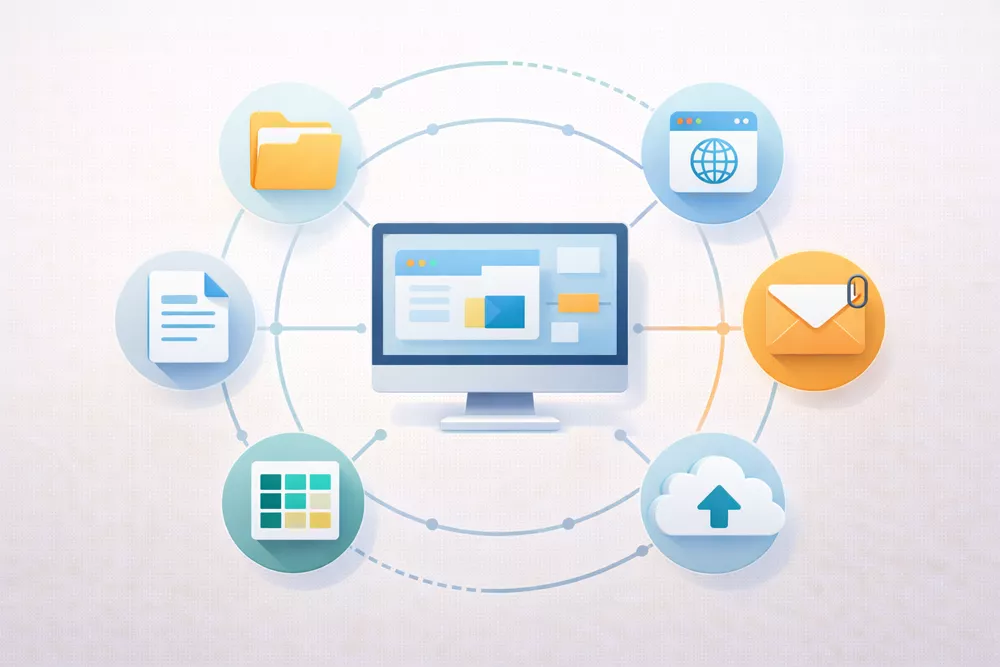
Most software trouble doesn't come from picking the wrong app – it comes from clicking through install prompts on autopilot or letting updates pile up for months. The computer software skills that actually matter here are simple: knowing where a program came from, what it's asking permission to access, and how updates get handled once it's installed.
Sticking to the official website or an app store cuts out most of the risk before it starts. Checking permissions during install – camera, files, location – takes a few seconds and stops apps from grabbing more access than the task needs. Automatic updates for the operating system and key apps matter because updates often patch security gaps, not just add features. When an install or update asks for a restart, letting it happen usually finishes the fix rather than leaving something half-applied.
The gap between View, Comment, and Edit access changes what a shared file can actually do to someone's work, and mixing them up causes most of the friction.
|
Permission |
Who it’s for |
Common mistake |
|
View |
People who only need to read |
Sharing a link publicly by accident |
|
Comment |
Reviewers giving feedback |
Expecting comments to change the file |
|
Edit |
Teammates who actively update content |
Giving edit access to everyone “just in case” |
A related slip shows up constantly: someone sends a link, and the recipient opens it to a permissions error because access was never actually granted to their account.
Everyday tasks tend to stack several skills at once rather than testing them one at a time – finding or creating a document, checking its format, uploading it somewhere, sending the right version, then saving a copy afterward. A handful of practical computer skills examples below show what that actually looks like, rather than describing it in the abstract.
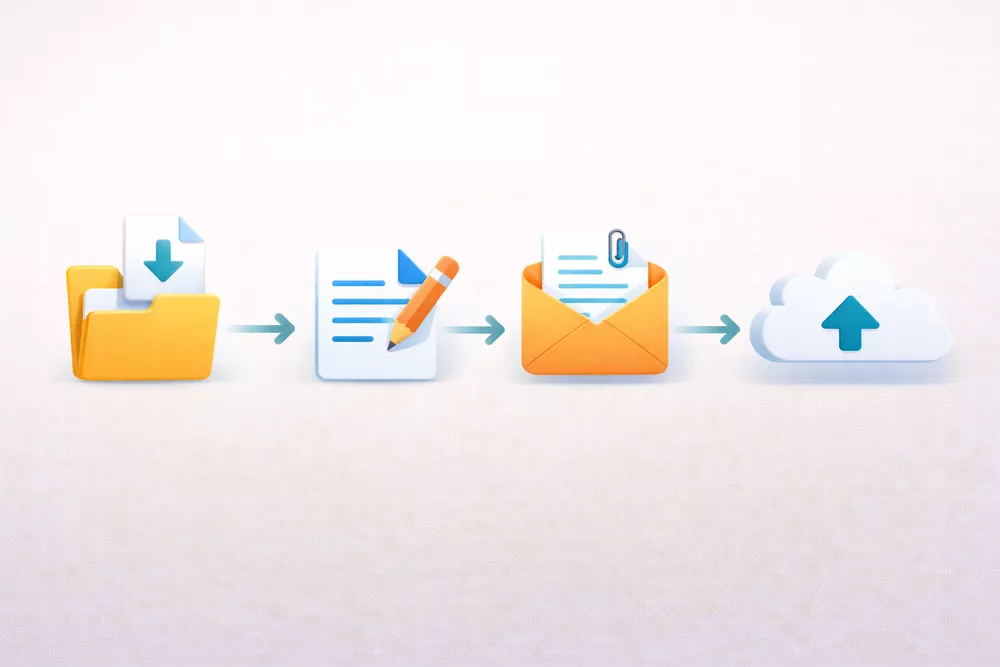
One workflow covers most of what comes up: create the document, save a working version, export to PDF once the layout needs to stay fixed, open the exported file to confirm nothing shifted, then send it or upload it depending on what's being asked for.
Where the previous file-management section covered day-to-day actions – saving, moving, renaming – this is about the system those files live in long-term. A naming pattern that survives time, something like date, topic, then version, keeps files findable months later without opening five of them to check which is current. Files worth keeping need moving out of Downloads on purpose, since that folder tends to become a dumping ground otherwise.
Examples that hold up: 2026-03_TaxDocs.pdf, ProjectNotes_v2.docx.
Guessing rarely beats a sequence: figure out what's actually broken, close and reopen the program, check the internet connection if that's where the trouble sits, restart the device if nothing else worked, look for pending updates or low storage, then copy the exact error message instead of describing it from memory. None of this fixes everything – some problems genuinely need someone else's help – but it clears the easy fixes before escalating further.
Once the basics are solid, a different set of habits starts paying off – none of them essential on their own, but together they make picking up any new tool faster. Best computer skills to learn at this stage tend to carry across software rather than living inside one specific app. Keyboard shortcuts become real time savers once they're automatic: Ctrl/Cmd+C/V, Ctrl/Cmd+F, Alt/Option+Tab, used without a second thought dozens of times a day. Data literacy at a basic level means sorting a list, spotting duplicates, reading a simple chart – no help needed. Cloud collaboration done right means sharing a folder at the right access level instead of emailing five slightly different versions around. And password manager basics – unique passwords, two-factor authentication turned on – shut down one of the most common security gaps people leave open every day.
A few things sit further out, worth knowing about without treating them as core requirements. Using AI-assisted writing responsibly means drafting a first version, then fact-checking it, adjusting tone, and catching mistakes before sending – not passing along a first result untouched, avoiding anything confidential in the input, and following whatever policy an employer or school has set for using these tools. Video meeting etiquette (muting on time, sharing the correct window, summarizing next steps in chat) and general file hygiene round out the list.
Testizer runs a basic computer skills test online, with results delivered by email and an optional certificate – useful as a quick check on where things stand, though it doesn't replace the kind of hands-on skills check an employer might run directly.
Basic computer literacy, in practice, means finishing an ordinary digital task without getting stuck partway through – finding a file, saving it correctly, sending it to the right place, fixing a small problem without panic. None of that comes from reading about tools; it comes from doing the same small tasks enough times that they stop requiring thought.
One realistic way to practice: pick a single task – creating a document, exporting it, and uploading it to an online form – and run through the whole thing start to finish a few times this week.
Yes, it's part of the core rather than a separate add-on. Recognizing a phishing link or a suspicious download is as fundamental as knowing how to save a file, since both failures cause the same kind of daily disruption.
Computer literacy covers the underlying habits – files, browsing, communication – that apply regardless of which programs someone uses. Software skills are narrower: knowing a specific tool like Excel or Photoshop well enough to use its actual features, which builds on top of that base rather than replacing it.
Whichever system is actually available makes the most sense to start with – the core skills (files, folders, browsing, basic settings) transfer between them even though menus and shortcuts differ. Learning both eventually helps, but there's no real advantage to starting with an operating system nobody currently has access to.
Using low-stakes files works well – old photos, draft documents, anything that won't cause a problem if something gets moved or renamed incorrectly. Creating a folder, sorting files into it, and renaming a batch consistently builds the habit without any real risk attached.
File handling, email etiquette, and basic document or spreadsheet formatting show up constantly across unrelated roles. Beyond that baseline, requirements shift fast depending on the specific job – an administrative role leans on spreadsheets daily, while other entry-level positions barely touch them.