

A basic computer skills list matters more than most people expect, because “basic” is now assumed in everyday life. Online forms, banking apps, school portals, and work chats often require you to download a file, rename it, upload it again, or find it later – and gaps show up fast. This basic computer skills list gives you a clear way to check what you can do today and what still feels shaky.
So, what are the basic computer skills needed? In simple terms: the ability to manage files, navigate your device confidently, communicate online, and handle common tools like documents and spreadsheets without guessing. Many people feel comfortable because they use a smartphone daily, but computers demand more control over folders, formats, and step-by-step workflows.
Testizer can be used as a quick online check for a digital skills baseline, with results sent by email; a certificate is optional. Start by checking which tasks you can do without help, then work through the list section by section.
Basic computer skills for beginners are less about installing more apps and more about owning the essentials: operating system navigation, safer browsing, and clear online communication. Confidence grows fast when you can do three routines without thinking: find and save files, search without getting tricked, and send a message that makes sense.
Beginner wins you can achieve this week:
If you want real progress, start with file control. Naming, folders, and downloads are where beginners either feel capable or feel lost. Once you know where things go, everything else becomes easier, including sharing documents and applying for jobs.
Mini checklist:
Practice with realistic files: save an “invoice.pdf” into a Bills folder, update “CV_2026.docx” in a Job Search folder, and sort “Photos_Trip” into subfolders by day or place.
Basic computer literacy shows up in small habits: using tabs to compare sources, bookmarking pages you’ll return to, and knowing where downloads land. Browsing well is not speed – it’s accuracy. You’re choosing the right result, checking what site you’re on, and avoiding the traps that catch beginners.
A few safety rules prevent most messes: don’t click links from random messages, don’t install “helper” tools from pop-ups, and don’t overshare personal details in forms you don’t trust.
|
Action |
Risk |
Safer habit |
|
Clicking links in messages |
Phishing pages |
Open the site by typing it or using a saved bookmark |
|
Downloading “free” software |
Bundled malware |
Use official sites or trusted app stores |
|
Saving passwords anywhere |
Account takeover |
Use a password manager and turn on 2-step login |
Email still runs a lot of real life: appointments, school updates, HR requests, invoices, and file sharing. The best computer skills examples here are simple but valuable: writing a subject line that matches the request, asking one clear question, and attaching the right file without sending three follow-ups.
Keep your messages structured:
Essential computer skills for work and study are mostly output skills: producing clean documents, readable spreadsheets, and clear slides. People often notice gaps late because employers and teachers don’t always spell these basics out – they just expect you can deliver a file that looks right and is easy to use.
|
Tool |
What you use it for |
One beginner action |
|
Word / Docs |
Letters, reports, CVs, assignments |
Apply heading styles instead of manual bolding |
|
Excel / Sheets |
Lists, budgets, tracking, simple analysis |
Build a table and sort it correctly |
|
PowerPoint / Slides |
Presentations, summaries, proposals |
Create a simple 5-slide outline with consistent layout |
Most computer software skills in word processors come down to clarity. Formatting is not decoration – it’s how you make information easy to scan, review, and reuse. When headings, spacing, and lists are consistent, you get fewer follow-up questions and fewer “which version is correct?” moments.
Focus on five practical moves:
A quick self-check: open an old document and reformat it in five minutes using styles and clean spacing. If it becomes easier to read, you’re doing it right.
Spreadsheets are not about being good at math. They’re about keeping information structured so it stays usable. A beginner who can format a table, sort it correctly, and apply one basic formula is already ahead of many “I’m fine with Excel” claims.
Core starter set:
Use one simple project to practice: a monthly budget with categories and totals, or an attendance tracker with dates and status. Keep it small, then refine it: add a header row, freeze it, sort by category, and filter by month.
Slides work when they’re easy to follow at a glance. You don’t need fancy transitions; you need structure: one idea per slide, a clear hierarchy, and visuals that support the point instead of competing with it.
Quick checklist:
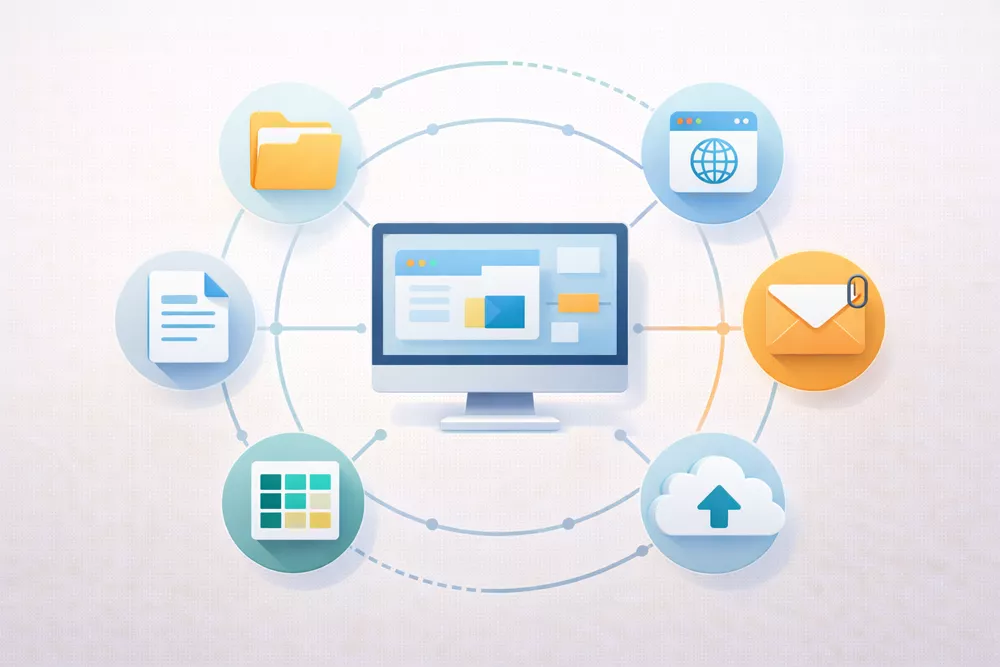
The biggest risk with software isn’t that you “don’t know enough apps.” It’s installing the wrong thing, clicking through prompts on autopilot, or letting updates slide for months. Basic software hygiene is simple: know where a program comes from, what it’s allowed to access, and how updates are handled. Once that’s in place, new tools stop feeling risky – you can try them, remove them, and keep your system stable.
Good installs start before you click Download. If a site pushes extra toolbars, “driver boosters,” or multiple installers, treat that as a warning sign. Stick to trusted sources and keep your system updated, because updates often patch security holes – not just add features.
Quick routine:
A practical habit: after installing something new, open settings once and look for update options. It takes one minute and prevents weeks of small problems later.
Cloud tools reduce version chaos, but only if you treat permissions as part of the work. The difference between view, comment, and edit matters, and so does link access. A shared folder with clear rules usually beats a long email thread with attachments.
|
Permission |
Who it’s for |
Common mistake |
|
View |
People who only need to read |
Sharing a link publicly by accident |
|
Comment |
Reviewers giving feedback |
Expecting comments to change the file |
|
Edit |
Teammates who actively update content |
Giving edit access to everyone “just in case” |
If your workflow involves skills checks or assessments, Testizer can support a simple online testing flow where results are delivered by email, which helps keep tracking consistent across a group without passing files around.
Everyday tasks expose gaps faster than any course: printing a form, attaching the right file, uploading a scan, or finding something you downloaded yesterday. These “small” actions matter because they repeat every week. When you’re unsure, you lose time in tiny chunks – and that adds up. A few practical computer skills examples below show what competence looks like in real life, not in theory.
Most real tasks follow the same path: create → export → share → store. That’s why essential computer skills aren’t about fancy features; they’re about finishing the workflow cleanly. File format matters, especially when you’re applying for something or sending a document to an organization that expects a PDF.
A simple routine:
One quick check that prevents mistakes: open the exported file once before sending it, just to confirm the layout and the pages.
A good system is boring – and that’s the point. Clear names and predictable folders remove the daily “where did it go?” stress. This is the part of a basic computer skills list that people skip, then regret later.
Use a naming rule that survives time: date + topic + version. And treat the Downloads folder as a temporary desk, not storage. Move files on purpose, the same day you download them.
Example names that work:
If you do one thing this week, make one folder for “Documents to Send” and keep only final files there.
Troubleshooting is not magic. It’s a sequence: identify the problem, try the simplest fix, and isolate what changed. Most beginner issues are solved by basic maintenance, not advanced settings.
A five-step fallback:
This approach saves you from random clicking. It also helps you explain the issue clearly if you end up asking for help.
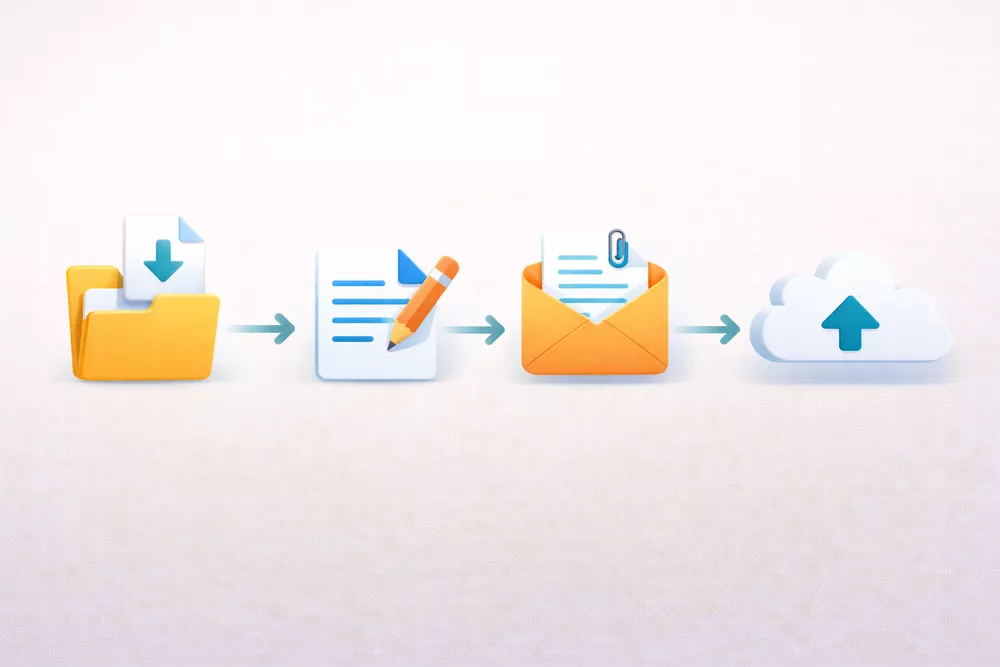
If you’re thinking ahead, the best computer skills to learn are rarely tied to one trendy app. They’re the habits that transfer across tools: working faster with shortcuts, handling information cleanly, collaborating without confusion, and keeping your accounts and files safe. Once you understand common patterns (menus, settings, permissions, versions), picking up new software stops feeling like starting from zero.
Future-facing skills worth building:
If you need to show a baseline for entry-level work or study, a Testizer certificate is optional.
The path is simpler than it looks. A useful skill stack usually grows in layers: operating system basics, online safety, and communication first; then documents and data; then software hygiene; and finally the everyday workflows that connect everything together. Basic computer skills for beginners improve fastest through repetition – not by reading about tools, but by completing small tasks again and again.
A practical next step: pick two weak areas from the list, practice them for 20 minutes a day for one week, then add one work or study skill. This keeps progress visible. If you later need to show proof of your level, a Testizer certificate is optional.
You know you have basic computer literacy when you can complete common tasks without guessing or searching for help every step. A confident user can download a file, rename it clearly, attach it to an email, and share a link to the same document if needed. The key signal is task completion, not self-confidence.
Try a quick 10-minute check: download a file, rename it, attach it to an email draft, then generate a shareable link from cloud storage. If you can do all four without confusion, your foundation is solid.
List computer skills that match the job description rather than vague statements like “good with computers.” Employers look for tools and tasks together – for example, “Excel: sorting data and creating simple reports” or “Google Docs: formatting and collaborative editing.” This makes your experience easier to verify.
A practical step is to open one job posting and copy three tool requirements from it. Then connect each tool to a task you have actually performed.
The core is similar across roles, but the second layer changes depending on the job. Almost everyone needs file management, email, browsing accuracy, and document handling. After that, the tools shift – an administrator may use spreadsheets daily, while a retail worker might rely on inventory or point-of-sale systems.
Identify the core five skills first, then add two tools specific to the role you want.
Most people build a reliable foundation within a few weeks if practice focuses on real tasks. Reading tutorials helps, but repeated actions create the habit. Once routine actions become automatic, new tools are easier to learn because many interfaces follow similar patterns.
Try a two-week routine: repeat three core tasks daily – file management, document editing, and safe browsing – until they feel natural.
Yes. Many people develop practical skills through guided practice rather than formal classes. What matters is structured repetition and checking results, not the learning format. Small mistakes are part of the process as long as you correct them and repeat the task.
Follow one weekly checklist of tasks, track how long they take, and note where you hesitate. Each week, the hesitation points become the next skills to improve.